

Why There's A Tiny Green Blinking Light On Your Xfinity Modem
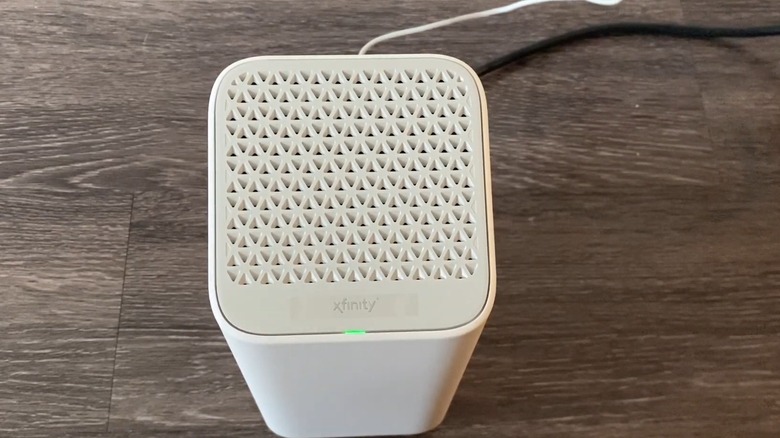
You get done with work on a Friday, cancel all your social plans, slip on your comfiest PJs, and settle down on your couch to binge the latest trending show on Netflix (or, perhaps you just want to rewatch "Off Campus"). Sadly, your carefully crafted relaxation plan will get derailed if the screen keeps buffering. Under such circumstances, it's best to check whether your Wi-Fi signal is too weak. A tiny green blinking light on your Xfinity modem is a clear sign of an unstable internet connection. The constant flickering suggests that the device is trying to establish a stable connection, but its efforts are being thwarted for one reason or another.
A loose, bad quality, or damaged coaxial cable is one of the most common culprits. Moreover, if you connect more devices than your current plan allows, your modem may start flashing green. In case there are some pending bills that you forgot to pay, you'll have to deal with a troubled connection. Your modem might also experience software or hardware problems, leading to poor connectivity. An overheated device will also make for an inferior transmitter. And, sometimes, the issue lies completely with Xfinity. For instance, service outages in your area can lead to a poor network connection. If the issue plaguing your device is benign, it'll resolve itself within a few minutes and you can go back to enjoying your weekend plan. Otherwise, you'll have to try out a few fixes to restore a solid internet connection, unless you were hoping to somehow miss that tedious Zoom call.
Simple fixes for the blinking green light on your Xfinity modem
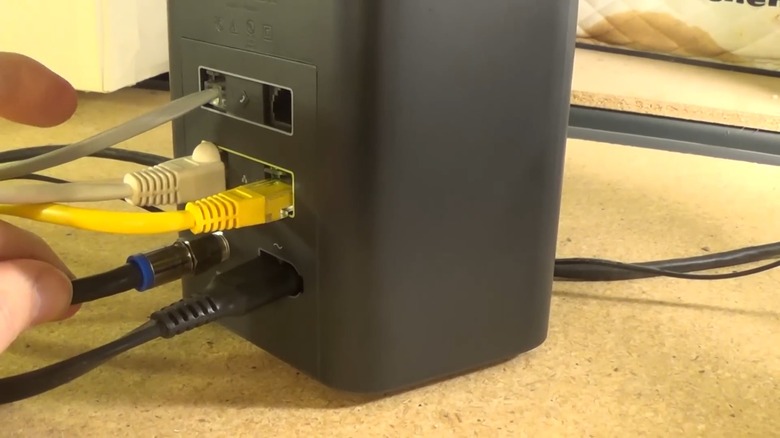
The first thing you want to do is ask around your house to confirm it's not just your device facing network issues. This is because no fix listed here will work on individual device problems. You can even try disconnecting a few smart appliances and other electronics to rule out network congestion. However, if this doesn't stabilize your internet connectivity, turn your Xfinity modem around and examine whether the coaxial cable has come loose. In case it has, tighten it back, but don't overdo it. But if it's damaged or corroded at the edges, you'll have to replace it as soon as possible. While at it, check other cables, too. If it's neither, see if the issue lies with your coaxial splitter. To do this, directly connect your modem to a wall outlet. This should get you a stable green light on your modem.
Otherwise, open your Xfinity app to check whether any power outages were noted in your area. You can even go to Xfinity's Outage Map page to see if the network in your location is weak. In such cases, your best course of action is to patiently wait for two to four hours for the telecommunication company to restore the network in your area. However, if that's not the case either, follow the classic unplugging method. All you have to do is power off the modem, unplug its power cord, and wait for about 60 seconds (30 works, too, if you're in a hurry) before plugging it back in. Give it three to five minutes to reboot prior to turning it on and you should have a stable connection.
Other fixes for the blinking green light on your Xfinity modem
When none of the above fixes lead to a stable green light on your modem, log into your Xfinity app and check if there are any unpaid bills. Clearing them as soon as possible should reinstate your network to its usual speed. While you're logged in, look for firmware updates on the equipment update page (you'll find it under the "Update Firmware" button) and install the new upgrades. Updating your modem's firmware can go a long way in helping it establish a stronger network connection.
Inspecting your modem's hardware can help, too. Ensure it is not overheated, doesn't seem damaged, or isn't emitting unusual clicking noises. In case it feels unusually hot, move the device to a well-ventilated area that's away from heat sources and other interfering devices. In other situations, you'll have no choice but to replace it, particularly if your modem is older (think four to five years) as it might no longer be compatible with recent technology changes.
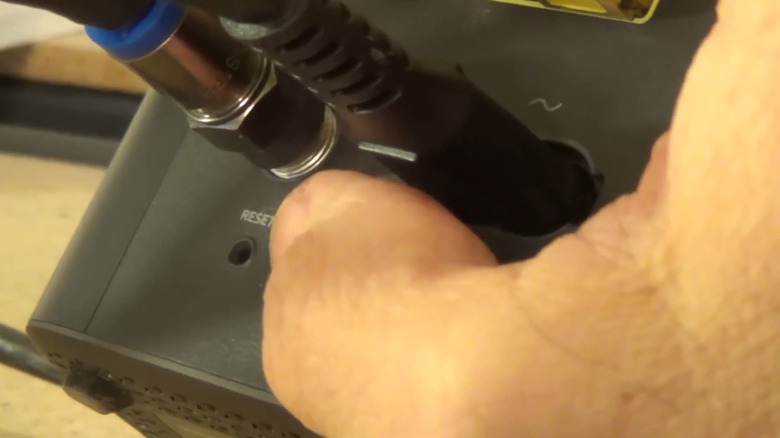
If none of the above fixes work, press the "Reset" button located on the back (or bottom) of your modem. Have a paperclip or toothpick handy since it can be hard to reach otherwise. Keep pressing it for at least 15 to 30 seconds to activate the mode. Now, give it a few minutes to reset before you try using the device. Remember, you'll have to re-configure your modem after this step since it'll revert to default factory settings. However, if this doesn't get rid of the blinking green light, it's best to get in touch with Xfinity's customer support.